 Zinfinite
1. Get started in 3 steps
Step 1 — Download setup
Sign in to Studio, open Settings, and choose Download setup_z.bat. That opens the setup page with steps and starts the download.

Step 2 — Run the file
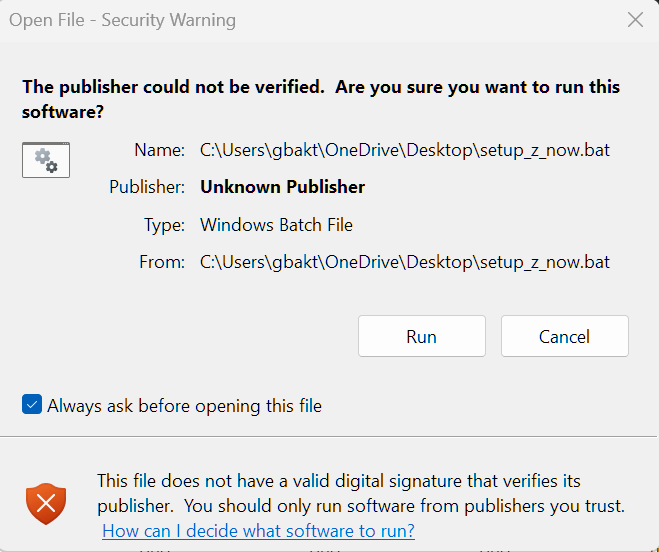
Double-click the downloaded file. Windows may show a security warning — that is normal (see next section). Click Run.
Step 3 — Open drive Z:
When setup finishes, open File Explorer. You should see a Zinfinite (Z:) drive — that is where your projects live on this computer.

2. The Windows warning
This is not a virus alert — it is expected.
Windows may show Open File - Security Warning because the setup file is not yet digitally signed. Publisher shows as Unknown Publisher. If you downloaded setup from zinfinite.studio / Studio, click Run. You can leave “Always ask before opening this file” checked. We plan to code-sign the installer later so this prompt goes away.
3. Everyday use
- On your computer — folders you are editing stay on the disk for full speed in Premiere, Resolve, Blender, and other apps.
- Archive — when a job is wrapped, move it to the archive in Studio to free disk space. The cloud copy stays.
- Not on disk — if you delete a folder on the computer, Studio can put it back from the cloud. Delete from cloud only when you mean permanent remove.
- Share / copy for a colleague — share a folder link from Studio; ask us if you need a full private duplicate into someone else’s account.
4. Studio screen
- ONLINE — your computer is linked and syncing.
- Free trial — shared test storage until you unlock your plan after payment.
- Pay now — charges for your plan and unlocks full Hot/Cold quota (works during trial or instead of trial).
5. Works with your apps
Zinfinite is a normal Windows drive. Any app that opens project folders can use it — no special plugin required.
- Adobe Premiere Pro
- DaVinci Resolve
- Blender
- Maxon Cinema 4D
- Foundry Nuke
- Adobe After Effects
Open projects from Z:\ the same way you would from any local disk.
6. Glossary
- On your computer (Hot)
- Files ready to edit on this PC.
- Archive (Cold)
- Off the disk to free space; still safe in the cloud.
- Z: drive
- Your Zinfinite folder shown as a normal Windows drive.
- Free trial
- 7-day shared test space until you Pay now or the trial ends.
7. Billing & trial
Plans include a 7-day free trial. During trial, storage may use a shared test pool — not your full plan size. When the trial ends, your card is charged for the selected plan unless you cancel first. After Pay now (or when a free trial ends and payment succeeds), your purchased quota applies. Cancel anytime from Studio billing. Details: Terms of Service.
8. Legal
Terms of Service · Privacy Policy
Zinfinite is operated by obrt Syndicate. Croatia. Contact hello@zinfinite.studio.